Run your Windows PC with your voice. Open programs, click buttons, move the mouse, browse the web, and write at up to 160 words a minute with Dragon Professional 16. Built for anyone who finds a keyboard or mouse painful, tiring, or impossible to use.
Dragon is more than dictation. It is hands-free computer control for Windows. Every command below is an official Dragon command you can say from the first session.
Open and switch programs
"Start Microsoft Word"
"Start Edge"
"Switch to Outlook"
"Minimize window"
Click anything on screen
"Click File"
"Click link"
"Click checkbox"
"Mouse double click"
Place the pointer
"MouseGrid"
"MouseGrid 7 3"
"Mouse click"
"Move mouse up"
Browse the web
"Search the Web for..."
"Open new tab"
"Search YouTube for..."
Write and fix text
"New paragraph"
"Correct that"
"Scratch that"
"Undo that"
Rest and get help
"Go to sleep"
"Wake up"
"Show Desktop"
"What can I say"
MouseGrid, now across three monitors
Say "MouseGrid" and Dragon lays a numbered grid over the screen. Say the numbers to zoom in, then "Mouse click" to click exactly where you need. New in Dragon Professional 16, it works across up to three monitors.
123456789
101112131415161718
192021222324252627
Accessibility by need
Built for the way you use a computer
Dragon removes the keyboard and mouse as a barrier, whatever the reason they are hard to use.
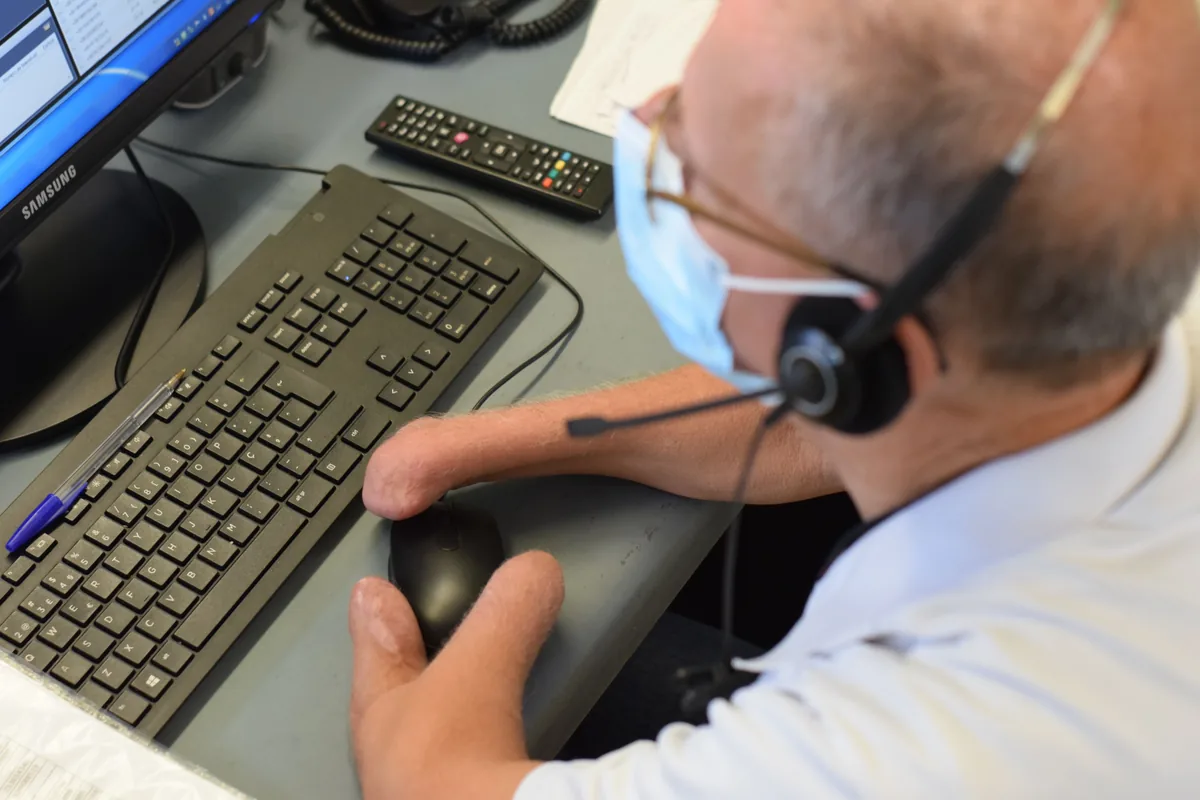
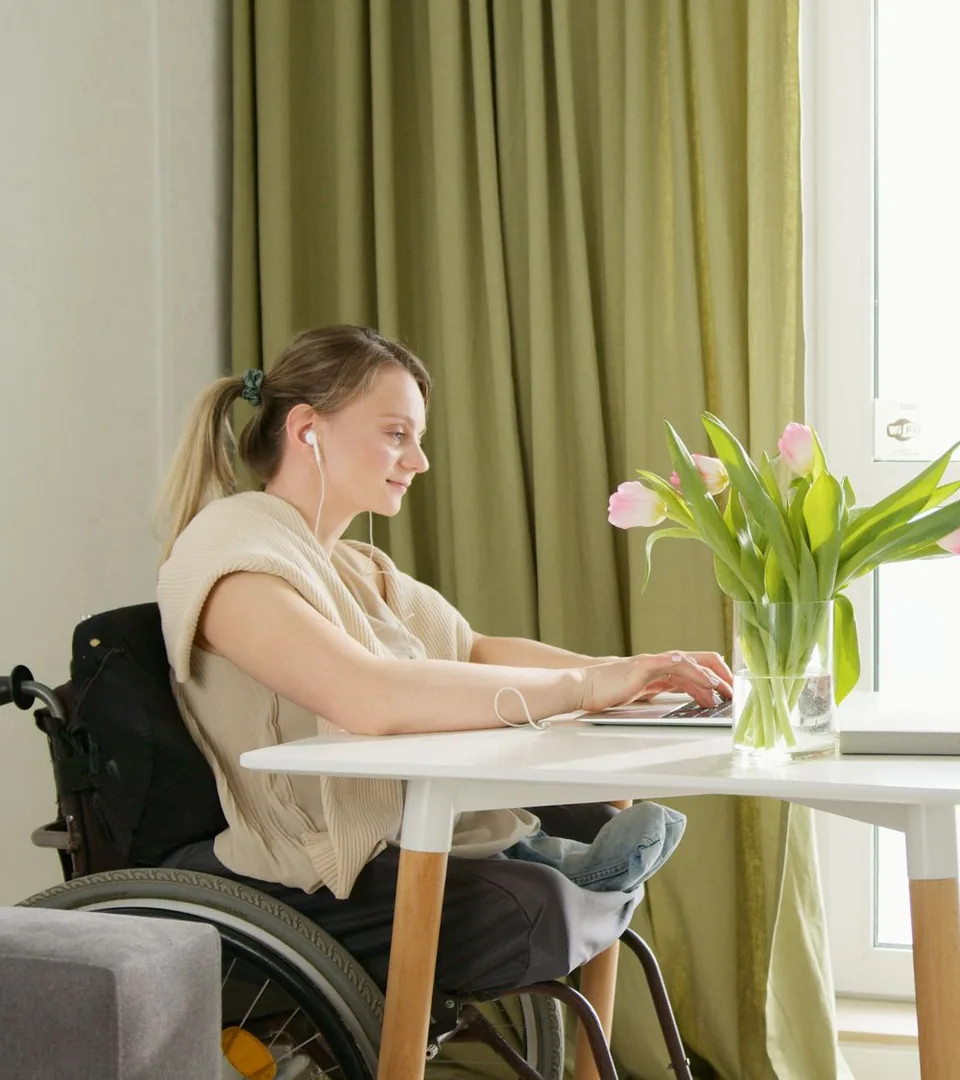
Limited dexterity, pain, or fatigue
When typing is painful or impossible
Arthritis, carpal tunnel syndrome, repetitive strain, paralysis, limb differences, or fatigue: when every keystroke costs something, your voice can do the typing and the clicking. Less time on the keyboard and mouse means less strain.
"Dragon is a big time saver for email. I dictate 95-98% of my email with it. Most people tend to write abbreviated emails, but I can write a nice, long complete email in under five minutes versus the 15 to 30 minutes it would take me with my fingers."
Michael MueheExecutive Director, Commission for Persons with Disabilities, City of Cambridge, MA
Speech differences and accents
Up to 99% recognition accuracy from first use, accuracy that extends to users with accents, and support for many users with speech impairments or pronunciation differences. Every correction you make teaches Dragon a little more about how you speak.
Say "Correct that"
Learning disabilities
Dragon helps people with language-based learning disabilities, including dyslexia, express themselves in writing. Speak instead of spelling, then proofread by ear.
Dragon works with popular screen readers like JAWS, and "Play that back" lets you check your dictation by listening. Use it alongside your screen reader, not in place of one.
Say "Play that back"
Who it is for
Accessibility for individuals, schools, and employers
The same Dragon Professional 16, whether you use it yourself or provide it as an accommodation.
For individuals
Your computer, on your terms
Email family, fill in online forms, manage the bills, write the story you have been meaning to tell, or do your job. Dragon handles the typing and the clicking, so you get things done without waiting on anyone.
Dictate email and documents in Outlook and Word
Search, click links, and fill in web forms by voice in Edge or Chrome
Turn a short phrase into your address, signature, or a full paragraph with Auto-text
Sign in on another PC and your voice profile comes with you
"Between email and Facebook, Dragon is my lifeline for casual day-to-day conversation with my family on the East coast."
Evan UpchurchFormer Usability Researcher, Microsoft
For disability services and special education
An accommodation students can use in the first session
Disability services offices, special education teams, and needs assessors need a writing and computer-access accommodation that a student can rely on this week, not after a semester of training. Dragon works inside the same Word, Outlook, and browser windows the rest of the class uses.
Section 508 certified for institutional procurement
"Play that back" proofreading for language-based learning disabilities
Works with JAWS for students with low vision
Volume licensing with central license management in Nuance Management Center
Workplace accommodations that keep people on the job
When an employee can no longer type comfortably, or a new hire needs computer access by voice, Dragon works inside the Windows programs your team already uses. No new workflow to learn.
Keeps workers with certain injuries on the job
Section 508 certified to help organizations meet disability management needs
Deploy and manage licenses centrally in Nuance Management Center
Share custom words, commands, and Auto-text across a team
Many people looking at Dragon are buying for someone else: a parent, spouse, caregiver, vocational rehabilitation counselor, or caseworker. Here is what matters most when you choose for them.
Learns their voice and adapts to accents and the words they use most
Accommodates many users with speech impairments or pronunciation differences
Dictation plus hands-free control of the PC, including MouseGrid
Works with JAWS for users with low vision
Check one thing first: Dragon Professional 16 runs on Windows 10 and 11 PCs only.
Windows speech recognition vs. Dragon Professional 16
Windows 10 and Windows 11 include free speech recognition and voice typing. They are fine for a quick message or a few commands.
If you have tried speech to text in Windows 11 and need more, Dragon is dedicated speech recognition software for people who rely on their voice all day.
What Dragon Professional 16 gives you
Deep Learning accuracy unmatched by general-purpose speech recognition tools, up to 99% from first use
MouseGrid across up to three monitors
A custom vocabulary of names, acronyms, and terms you choose
Auto-text, Step-by-Step commands, and the Macro Recorder
Transcription of recordings from a single speaker
"Play that back" proofreading in your own voice
In their words
What people who work by voice say about Dragon
"As a business founder and website designer that also happens to be disabled, words are lacking to describe the impact Dragon speech recognition solutions have on my professional and personal life. Dragon v16 is the best Dragon yet, with even more functionality built in for those with accessibility requirements."
Casey MarengeCo-founder and Senior Web Developer, The Digified Agency
"Dragon let me easily make the transition from using my hands to using my voice. It was a painless process."
Evan UpchurchFormer Microsoft usability researcher
"If I say a new phrase, I add it right away, with just a few seconds of training. It saves a lot of time in the long run because I use a lot of references to various organizations, laws, and so forth every day."
Michael MueheExecutive Director, Commission for Persons with Disabilities, City of Cambridge, MA
Testimonials describe Dragon speech recognition. Some speakers used earlier Dragon versions.
Getting started
From first call to first command
No week of training sessions. Most people are dictating and clicking by voice in their first sitting.
Schedule a free consultation
Tell a Dragon specialist how you or the person you support uses a computer today and which programs need to work by voice.
Install on a Windows PC
Dragon Professional 16 installs on Windows 10 or 11. An internet connection is needed for download and activation.
Create a voice profile
Dragon sets up a personal voice profile and starts with up to 99% recognition accuracy.
Say "What can I say"
Start talking
Open programs, dictate, and click by voice from the first session.
Say "Start Microsoft Word"
Free consultation
Talk to a Dragon accessibility specialist
A short call to match Dragon to the person who will use it, before anyone buys anything. On the call, we cover:
How you, or the person you support, uses a computer today
Which programs and websites need to work by voice
Microphone and headset options, including the Nuance PowerMic 4
Licensing for one person, a school, or a whole organization
Can I control my whole computer by voice with Dragon?
Yes. Dragon Professional 16 gives full hands-free control of a Windows PC: open programs, switch windows, click buttons and links, navigate menus, and place the pointer with MouseGrid on up to three monitors. In Edge and Chrome, Dragon Web Extensions let you click links, buttons, and form fields by voice. A few commands do not work in PowerPoint, Microsoft Teams (Home), Windows Settings and Action Center, or Windows 11 Notepad and File Explorer.
How is Dragon different from Windows speech recognition?
The speech tools built into Windows 10 and 11 are free and handle quick tasks. People who depend on voice access all day usually need more: Dragon Professional 16 pairs Deep Learning accuracy unmatched by general-purpose speech recognition tools with MouseGrid across up to three monitors, custom voice commands for the tasks you repeat, JAWS compatibility, and Section 508 certification for organizations providing it as an accommodation.
Will Dragon understand my speech?
Dragon reaches up to 99% recognition accuracy from first use, that accuracy extends to users with accents, and it accommodates many users with speech impairments or pronunciation differences. It keeps adapting to your voice and the words you use most. When it mishears, say "Correct that" to fix it by voice.
Can Dragon help if I have arthritis, carpal tunnel syndrome, or limited dexterity?
Dragon lets you type, edit, and control your computer by voice, which means less keyboard and mouse use and less strain on your hands. People with arthritis, carpal tunnel syndrome, repetitive strain injuries, and limited dexterity use it to get everyday computer work done.
Does Dragon work with JAWS? Is it a screen reader?
Dragon works with popular screen readers like JAWS. It is not a screen reader itself: Dragon turns your speech into text and commands, and your screen reader reads the screen aloud. "Play that back" replays your own dictation so you can check it by ear.
Is Dragon Section 508 certified?
Yes. Dragon is Section 508 certified to help organizations meet disability management needs.
Is there a separate accessibility edition of Dragon?
No. Accessibility features are standard in Dragon Professional 16. It is the same software businesses use, with hands-free control, dictation, and screen reader support built in.
Can I buy Dragon for someone else?
Yes. Family members, caregivers, vocational rehabilitation counselors, caseworkers, schools, and employers often buy Dragon for the person who will use it. A free consultation helps you choose the right setup for them.
Yes. An accommodations office or HR team can provide Dragon to several people at once through volume licensing. IT then assigns and reassigns licenses from one console in Nuance Management Center, and a word list or command built for one person can be shared with everyone who needs it.
Yes. Dragon helps people with language-based learning disabilities express themselves in writing, and "Play that back" supports proofreading by ear. Students and school staff with an academic email address, or proof of enrollment or employment at an academic institution, can also buy Dragon at academic pricing.
Not anymore. Nuance discontinued Dragon for Mac in 2018, so Dragon Professional 16 is a Windows product. If the person you are buying for uses a Mac, plan on a Windows 10 or 11 PC for Dragon.
Which microphone is best for hands-free use?
For fully hands-free use, choose a wired or wireless headset microphone you can leave on all day, since a laptop microphone picks up more room noise. Someone who can hold a device may prefer the Nuance PowerMic 4, which adds programmable buttons and built-in mouse control. Dragon does not officially support Apple AirPods for dictation.
Is Dragon hard to set up for someone new to voice software?
No. Dragon creates the voice profile during setup and is ready to use from the first session. Nobody has to memorize commands up front: saying "What can I say" lists the ones that work in the open program. A free consultation can walk a first-time user, or the person helping them, through setup.